Subscription Guide
This guide walks you through subscribing to PriceSquawk and selecting your market data feeds.
Subscription Plans
PriceSquawk offers the following subscription tiers:
dxFeed Subscription
- Monthly: Base monthly billing
- Annual: Discounted annual pricing
- Lifetime: 1st year fee includes PriceSquawk and data. 2nd year you are billed for data only.
Basic Subscription
- Monthly: Lower-cost option
- Includes:
- Binance cryptocurrency data
- Dashboard management tools
- Limited to crypto markets
Market Data Options
When subscribing to dxFeed, you can select from various data packages:
CME Group - Full
Complete access to all CME Group futures markets including:
- Equity index futures (ES, NQ, YM, RTY)
- Energy futures (CL, NG, RB, HO)
- Agricultural futures (ZC, ZS, ZW, ZL)
- Metal futures (GC, SI, HG, PA, PL)
- Currency futures
- Interest rate futures
CME
Single exchange data, mainly for:
- Equity Indexes (ES, NQ)
- Currency futures (6A, 6E, 6J, 6B etc.)
- Crypto futures (BTC, ETH etc)
CBOT
Single exchange data, mainly for Treasury futures and aggricultural commodities. For example:
- ZB (30-Year Treasury Bond)
- ZN (10-Year Treasury Note)
- ZS (Soybeans)
- ZC (Corn)
NYMEX
Single exchange, mainly for Energy futures. For example:
- CL (Crude Oil)
- NG (Natural Gas)
COMEX
Single exchange, mainly for metal futures. For example:
- GC (Gold)
- SI (Silver)
NASDAQ
All US equities traded through the Nasdaq exchange. For example:
- TSLA (Tesla)
- AAPL (Apple) # Better NASDAQ example than SPY
- SPY (SPDR S&P 500 ETF Trust)
Step-by-Step Subscription Process
Step 1: Select Your Subscription Plan
Navigate to the Account page from the dashboard sidebar (User > Account)
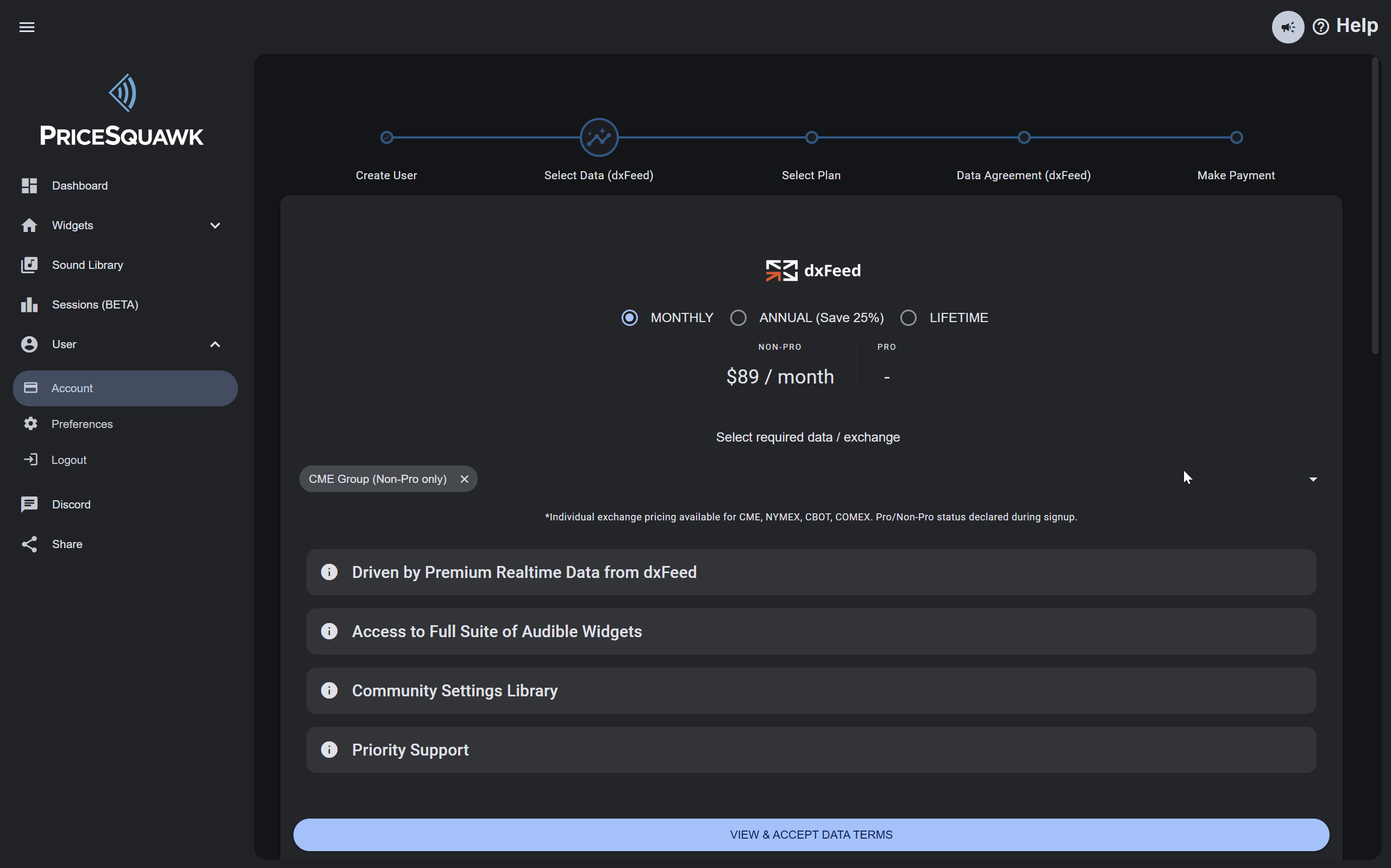
Choose between:
- dxFeed (monthly/annual) for US Futures market access
- Basic (monthly) for cryptocurrency only with dashboard and patch management capabilities (save your dashboard and load patches from the community)
Step 2: Select Your Market Data
After selecting dxFeed, choose your data packages:
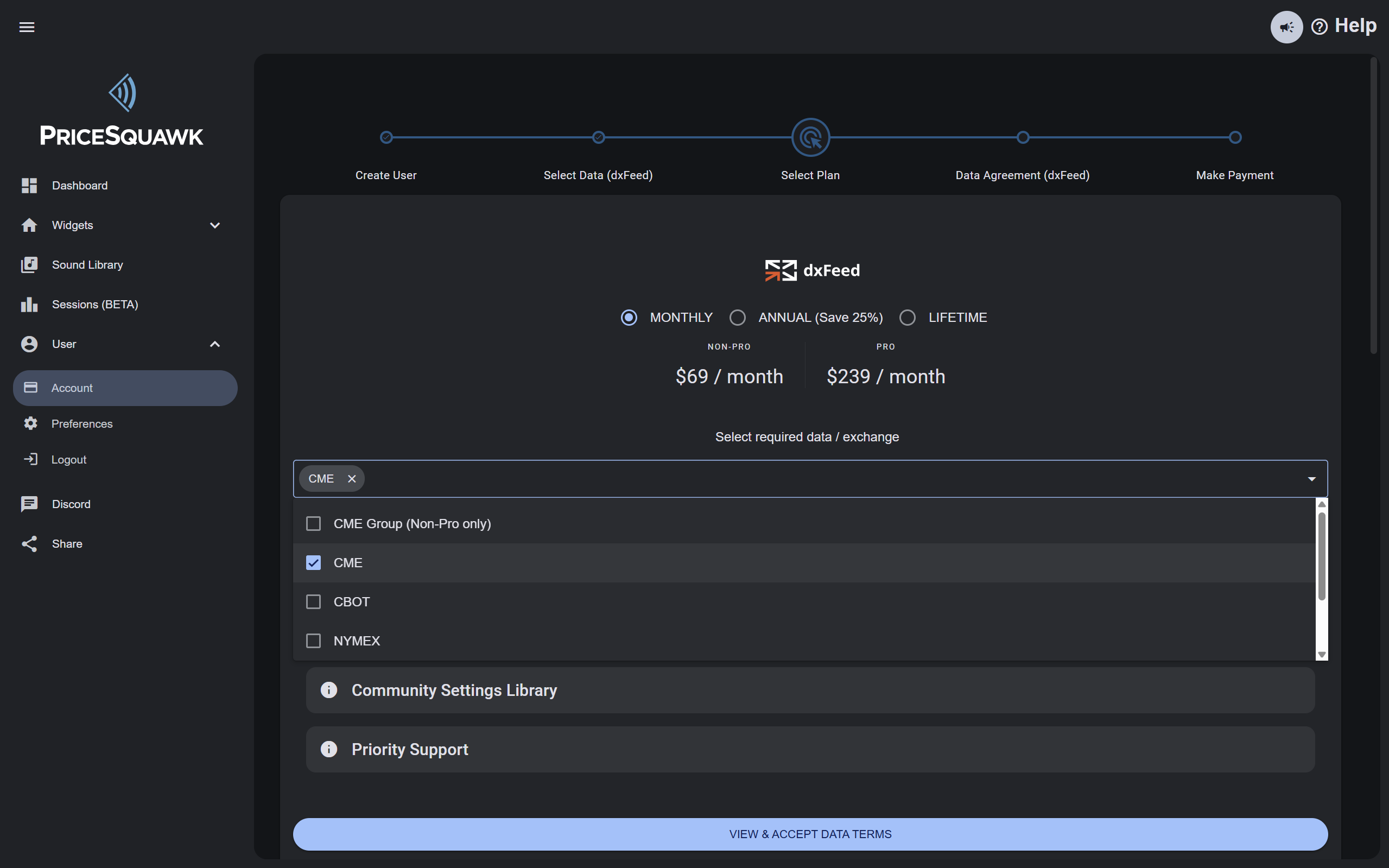
Select the exchanges and markets you want to trade:
- CME Group (all US Futures trading on CME Group exchanges)
- CBOT (e.g. Treasury futures)
- Additional packages as needed
Step 3: Declare Your Professional Status
You must declare whether you're subscribing as a Professional or Non-Professional user:
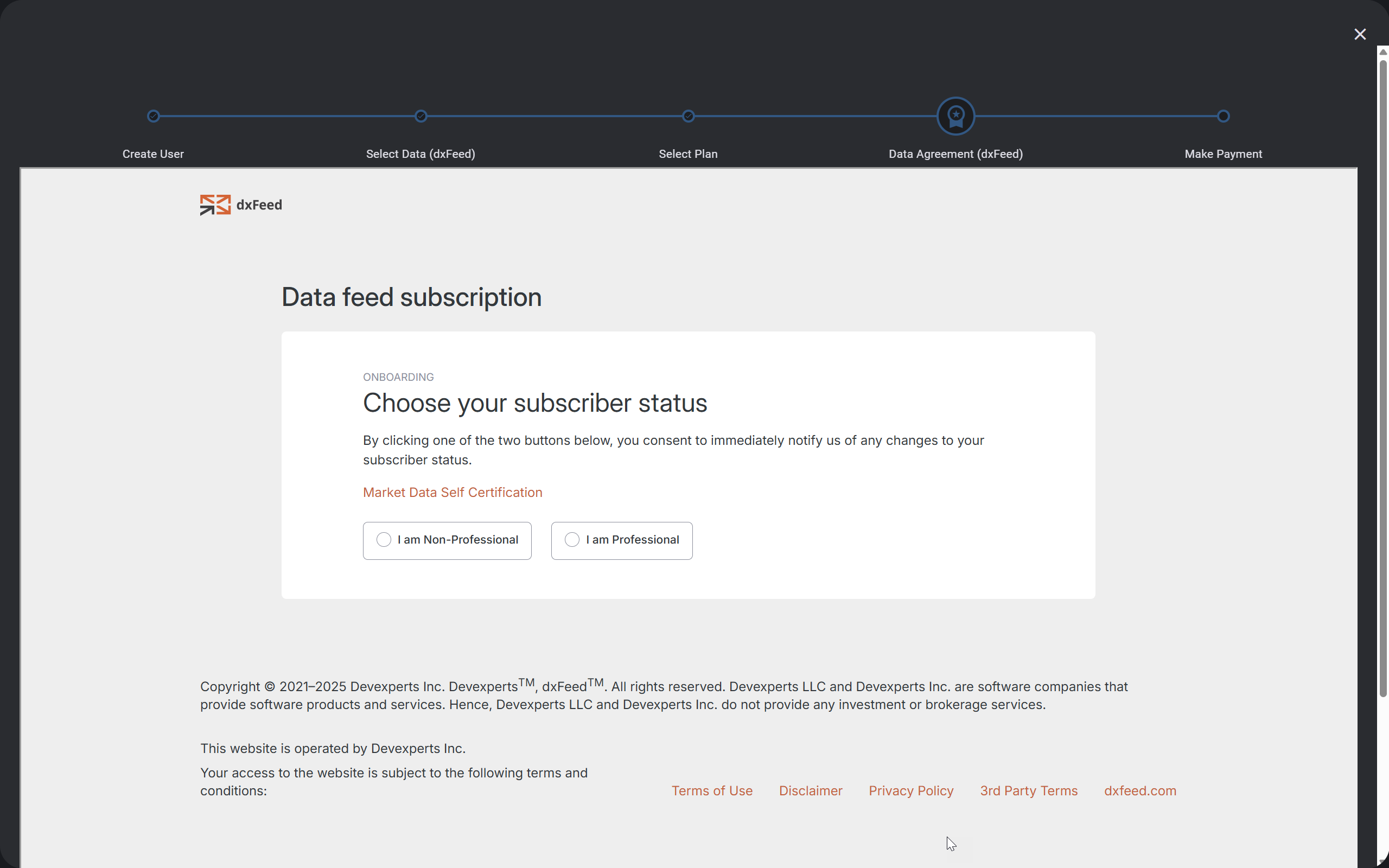
Non-Professional Definition:
- Individual trading for personal account
- Not registered with any exchange or regulatory body
- Not employed by financial institutions
- Not using data for commercial purposes
Professional Definition:
- Registered securities professional
- Employed by financial institutions
- Trading for institutional accounts
- Using data for commercial purposes
Step 4: Review and Sign Data Agreement
Review the terms of the data subscription agreement:
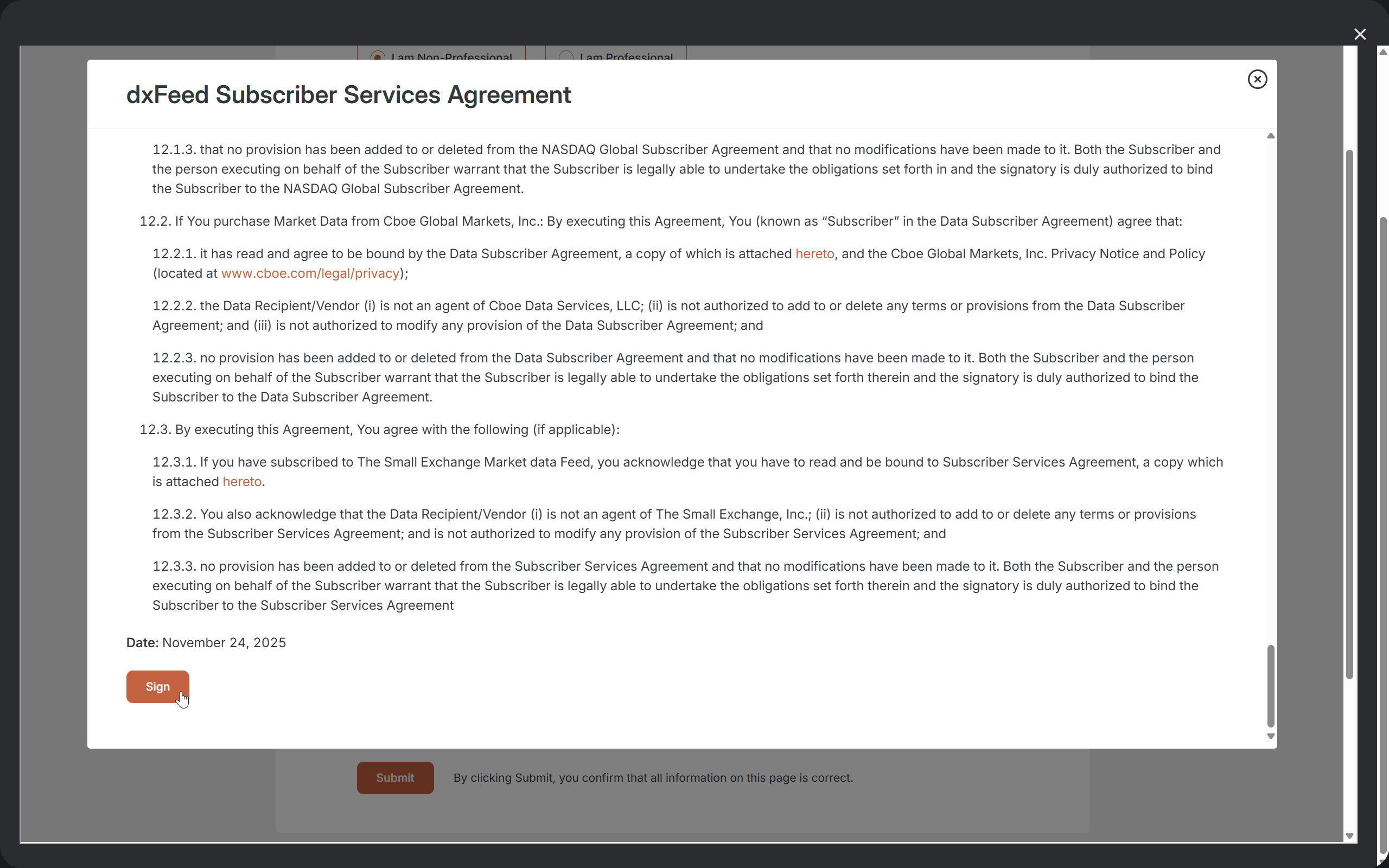
Carefully read the agreement and sign by clicking the Sign button.
Step 5: Enter Subscription Details
Enter your personal details, required for live market data:
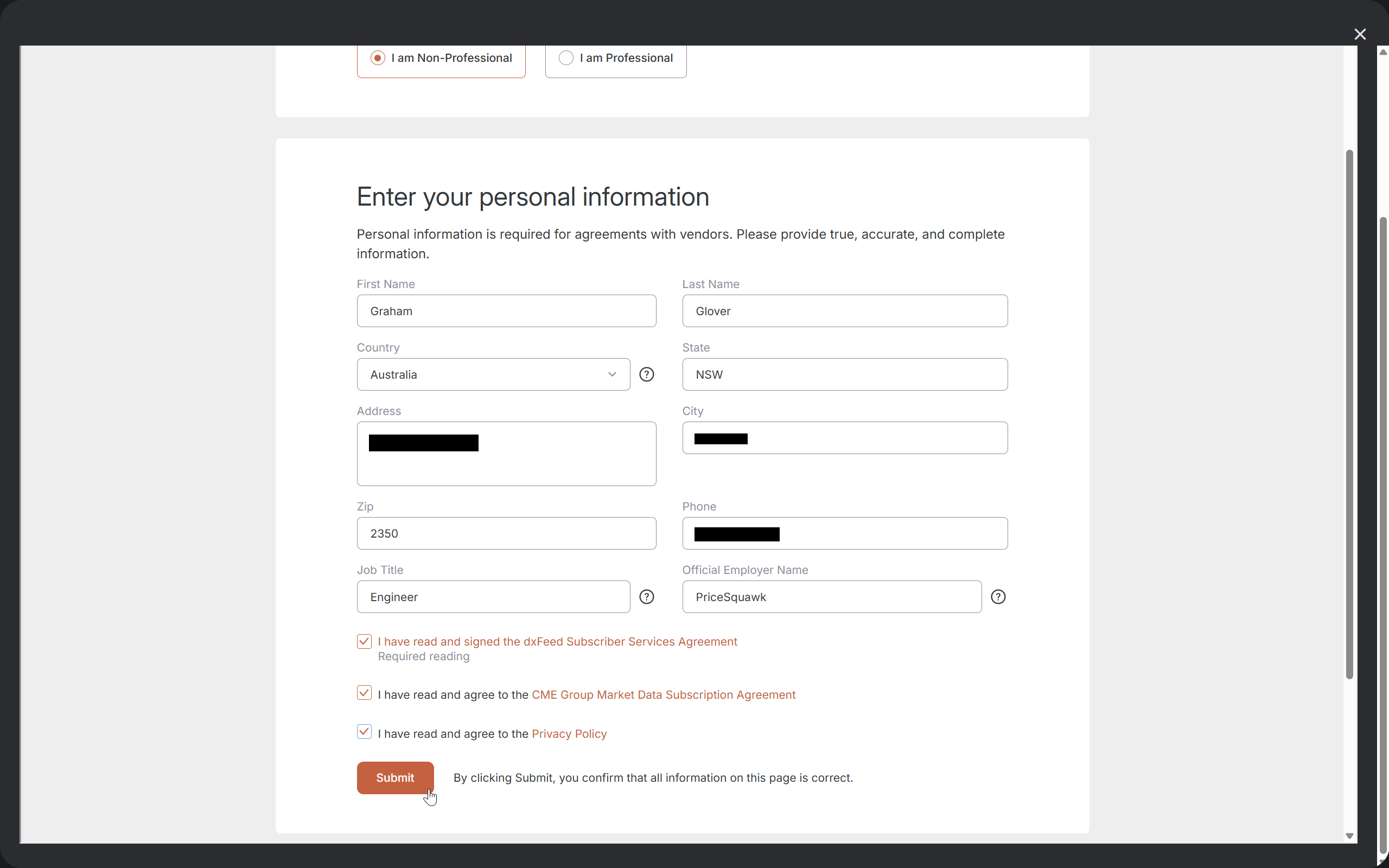
Review:
- Entered details accurate
- Read and signed dxFeed Subscriber services agreement (check box)
- Read and agreed to exchange agreeement (check box)
- Read agreed to privacy policy (check box)
Click submit to continue.
Step 6: Choose Payment Method
Select your preferred payment method:
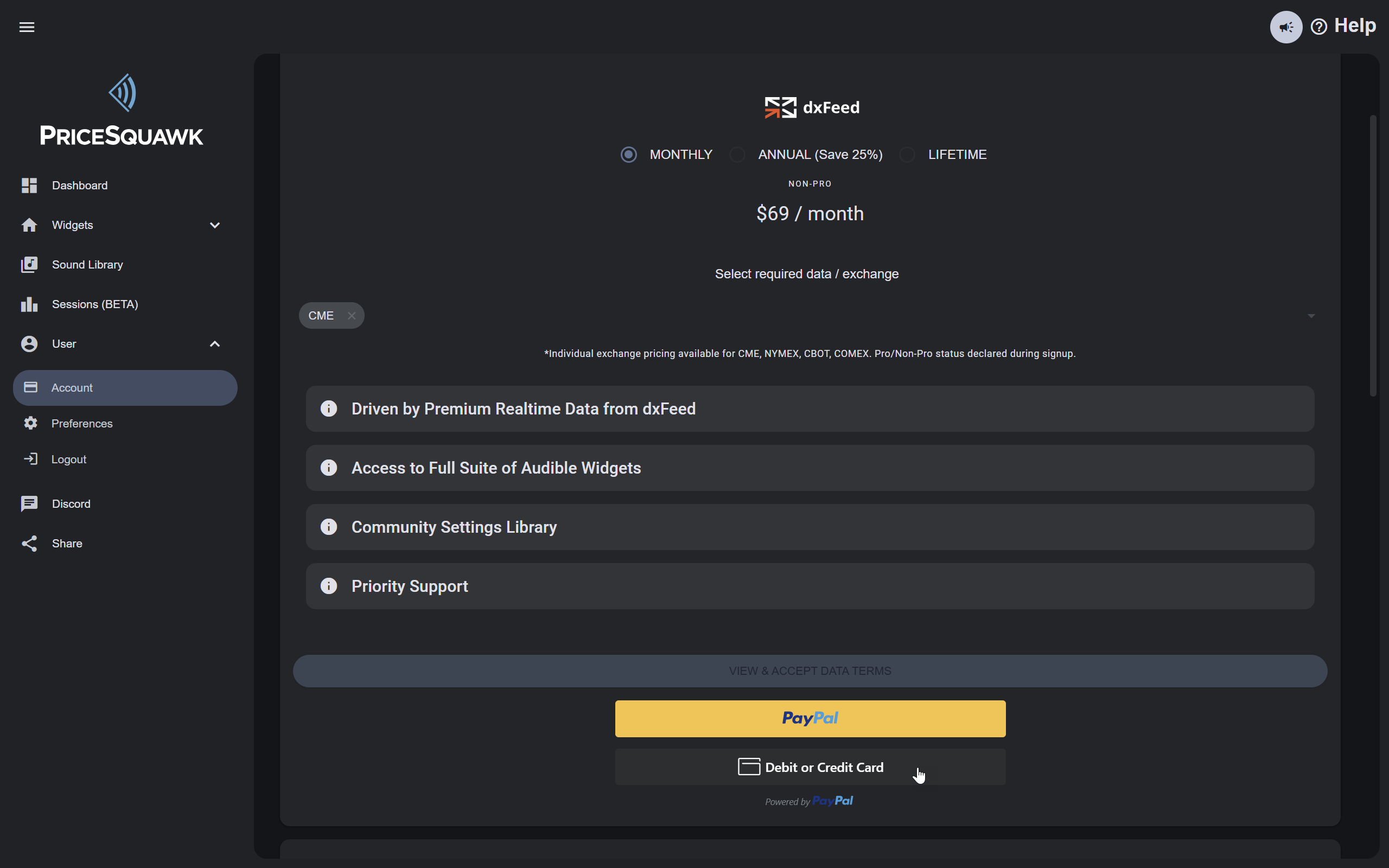
Currently, PriceSquawk manages subscriptions and collects payment via PayPal. Through PayPal you can select to pay via your PayPal account, or via Credit / Debit card. Click the appropriate button (PayPal / Credit Card ).
Step 7: Complete Payment
Complete the payment process through PayPal:
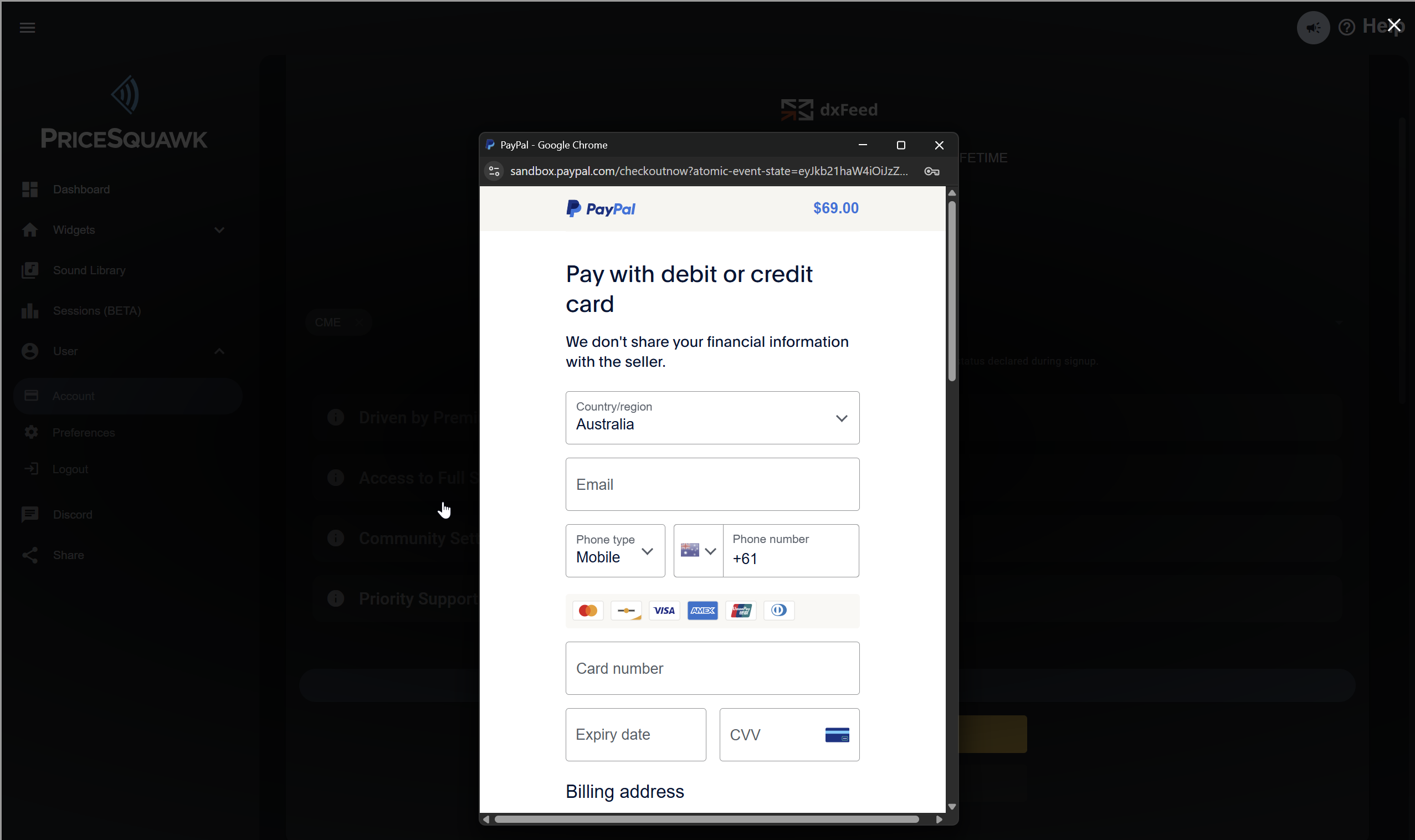
Follow PayPal's secure checkout process to finalize your subscription.
Step 8: Return to Dashboard
Upon successful payment, you'll be redirected back to the PriceSquawk dashboard:
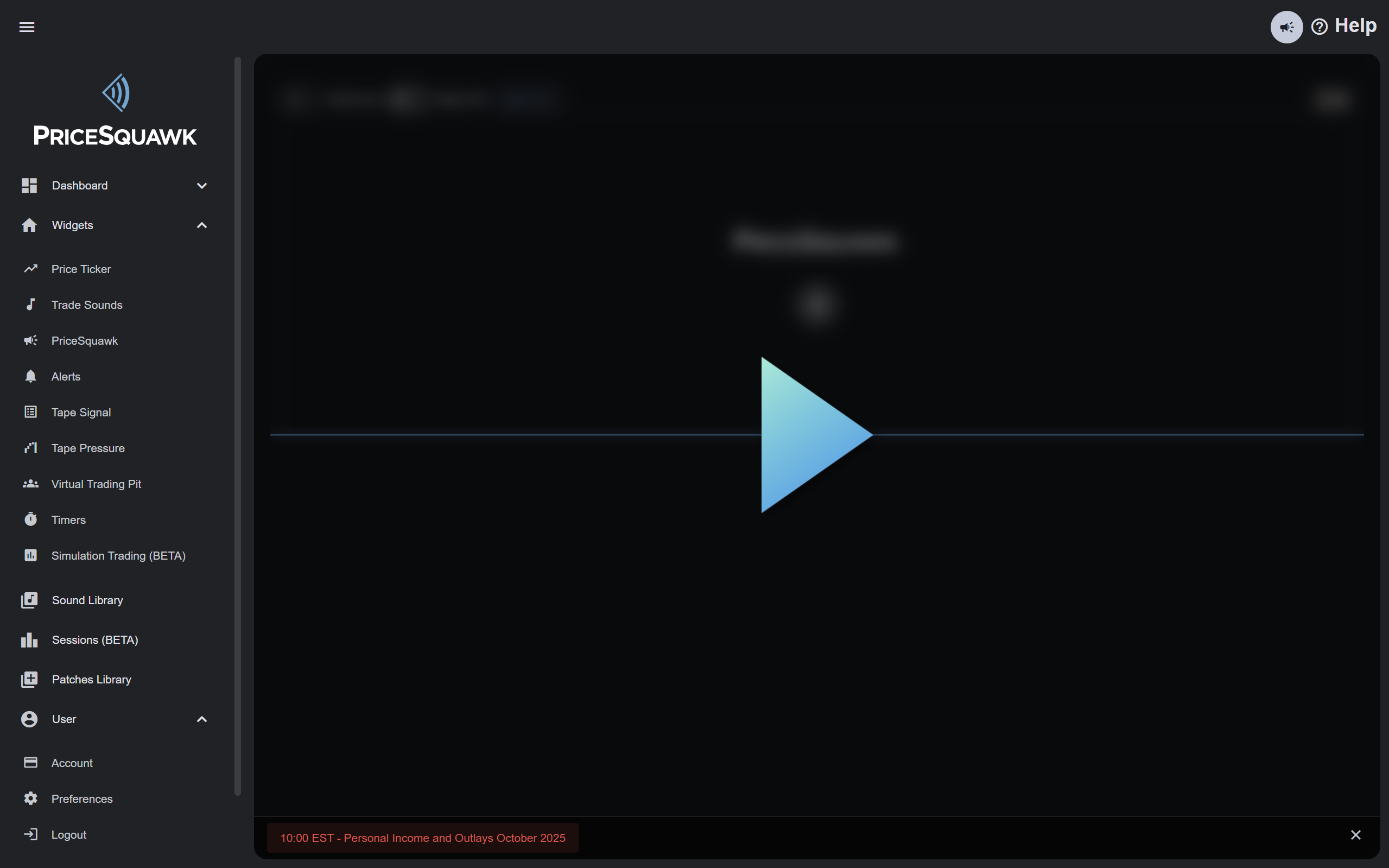
Your subscription will be active, and on the User > Account page you will be able to see:
- Subscription type and status
- Next payment date
- Active data feeds
- Management options
Managing Your Subscription
Viewing Subscription Details
From the Account page, you can view:
- Type: Your current plan (e.g., "dxFeed - CME (Non-Pro)")
- Status: ACTIVE, PENDING, or CANCELLED
- Plan ID: Unique subscription identifier
- User ID: Your account email
- Charges: Monthly cost
- Next Payment: Upcoming billing date
- Method: Payment provider (PayPal)
Cancelling Your Subscription
To cancel your subscription:
- Navigate to the Account page
- Click the Cancel Subscription button
- Confirm cancellation when prompted
- Your subscription will remain active until the end of the current billing period
- You will not be charged for subsequent periods
Changing Your Plan
To upgrade or downgrade your subscription:
- Currently: Contact support@pricesquawk.com to request a plan change
- Provide your current plan ID and desired new plan
- Support will assist with the migration
Updating Payment Details
To update your payment method:
- Click the Edit Payment Details button
- You'll be redirected to PayPal's subscription management page
- Update your payment method through PayPal
- Changes take effect immediately for future payments
Troubleshooting
Professional vs Non-Professional Status
Not sure which applies to you?
Choose Non-Professional if you:
- Trade only your personal account
- Are not employed by a financial firm
- Don't use the data for business purposes
Choose Professional if you:
- Are registered with FINRA, SEC, or other regulatory bodies
- Work for a broker-dealer, bank, or financial institution
- Manage other people's money professionally
- Use market data for commercial purposes
When in doubt, contact your compliance department or contact support.
Can't See Data Agreement or Payment Options
If you're having trouble viewing the subscription forms:
- Try a different browser: Use Chrome, Firefox, or Edge
- Try on a PC/Desktop: Mobile browsers may have compatibility issues
- Disable browser extensions: Ad blockers or privacy extensions may interfere
- Clear browser cache: Old cached data may cause display issues
- Check JavaScript: Ensure JavaScript is enabled in your browser
Payment Failed or Incomplete
If your payment doesn't complete:
- Verify your PayPal account is in good standing
- Ensure sufficient funds or valid payment method in PayPal
- Check your email for PayPal notifications
- Try the subscription process again
- Contact support if issues persist
Subscription Not Showing as Active
After payment, your subscription should activate immediately. If not:
- Refresh the dashboard
- Check your email for payment confirmation
- Verify payment was completed in your PayPal account
- Log out and log back in to PriceSquawk
- Contact support if still not active after 1 hour
Data Feed Not Available
If your subscribed data feeds aren't working:
- Verify your subscription status is "ACTIVE"
- Check that your selected exchanges are included in your plan
- Ensure your payment is current (not past due)
- Try reconnecting the widget to the symbol
- Contact support for data feed issues
Support
Need help with your subscription?
- Get Support - Complete support guide with response times and what to include
- Quick Support:
- Discord #general-support (fastest response during trading hours)
- Email: support@pricesquawk.com (24-48 hour response)
- Self-Help: Check our Troubleshooting Guide
Ready to start trading with audio intelligence? Subscribe today and transform your market analysis!